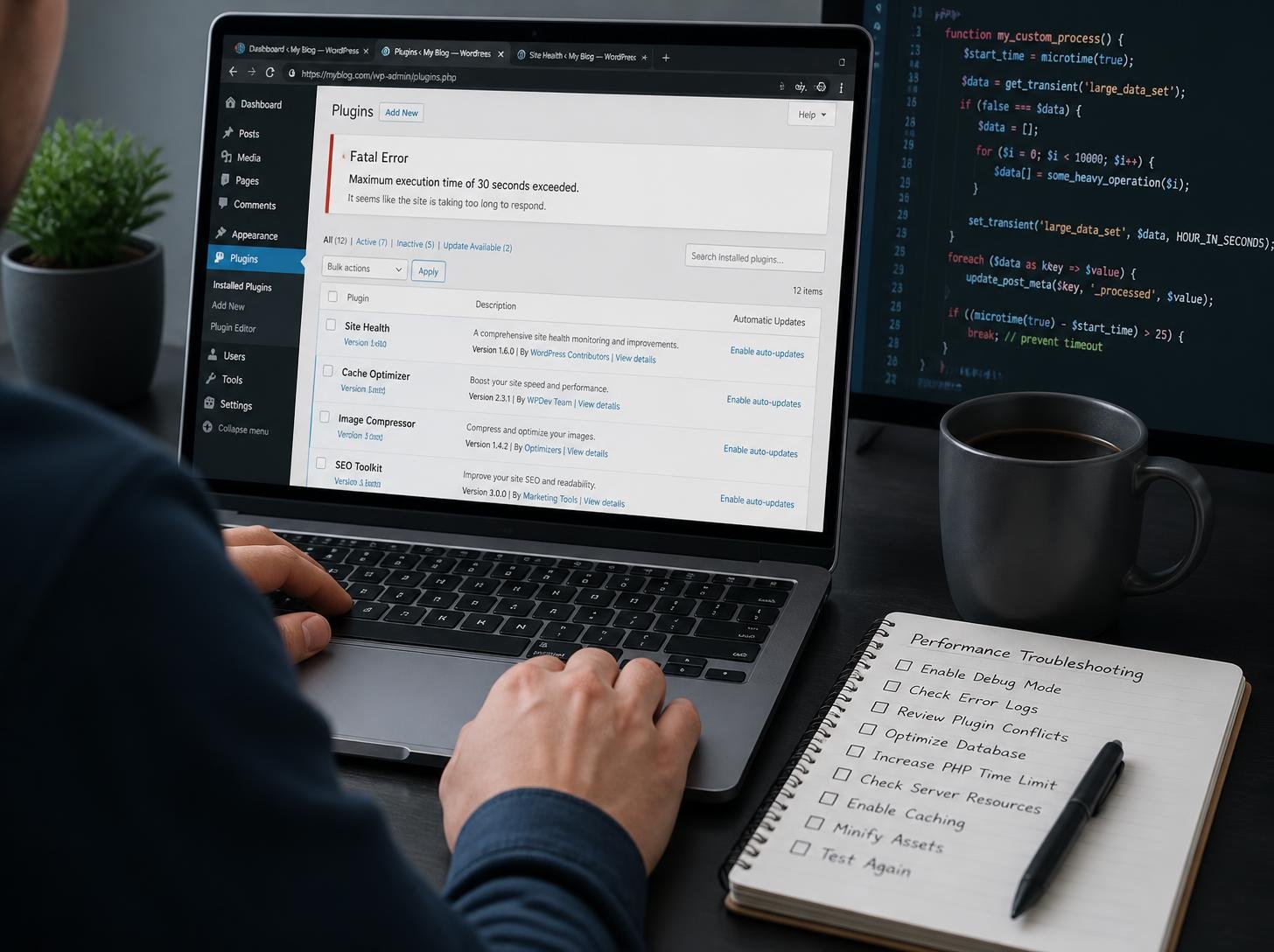
How to Fix Fatal Error Uncaught Error Call to Undefined Function
Few WordPress errors are as alarming as seeing a completely blank page or a message such as Fatal error: Uncaught Error: Call to undefined function.
Your website may have been working perfectly moments earlier. Then you install a plugin, update a theme, edit some code, or upgrade WordPress—and suddenly the site stops working.
The good news is that this error is usually fixable.
A wordpress fatal error uncaught error call to undefined function message tells you that WordPress or one of its components tried to execute a PHP function that the server could not find. In many cases, the underlying problem is a plugin, theme, incompatible PHP version, missing dependency, corrupted file, or incorrectly added custom code.
This guide explains what the error means, how to identify the cause, and the safest ways to restore your WordPress website.

The Core Basics
Before fixing the problem, it helps to understand what WordPress is actually telling you.
WordPress is built primarily with PHP. Your WordPress installation, themes, and plugins contain PHP instructions that tell the server what to do.
A function is a reusable piece of PHP code designed to perform a particular task. WordPress itself contains thousands of functions, while plugins and themes can introduce their own.
An **undefined function** means PHP was instructed to run a function that does not exist or is not currently available.
For example, an error might look similar to:
“`text
Fatal error: Uncaught Error: Call to undefined function example_function()
“`
The important part is:
“`text
Call to undefined function
“`
The word fatal means PHP cannot continue executing the affected script. Consequently, WordPress may fail to load the administration area, frontend, or both.
The error message usually provides additional information, including the plugin or theme file involved and a line number. That information is extremely valuable because it can point directly toward the source of the problem.
💡 WP Fix It Co Recommendation: If you’re dealing with the wordpress fatal error uncaught error call to undefined function, a fast, secure WordPress host can help prevent server-related compatibility problems and makes it much easier to implement troubleshooting and recovery solutions smoothly. Get Hostinger WordPress Hosting here.
Step-by-Step Guide to Fix the Error
1. Read the Complete Error Message
Don’t immediately start deleting plugins or changing files.
First, read the entire fatal error message.
Look for information such as:
* The name of the undefined function
* The PHP file where the error occurred
* The plugin or theme directory
* The line number
* The PHP version or other server information, if shown
For example, if you see something like:
“`text
/wp-content/plugins/example-plugin/includes/functions.php
“`
you have a strong indication that the plugin is responsible.
If the path points toward:
“`text
/wp-content/themes/example-theme/
“`
the active theme may be causing the problem.
2. Think About What Changed
The timing of the problem can provide an important clue.
Ask yourself what happened immediately before the error appeared.
Did you:
* Install a new plugin?
* Update an existing plugin?
* Change your WordPress theme?
* Update PHP?
* Add custom PHP code?
* Update WordPress?
* Restore a backup?
* Move the website to another hosting provider?
If the error appeared immediately after one of these actions, start your investigation there.
A plugin that previously worked may become incompatible after an update. Similarly, older themes or plugins can contain PHP code that no longer works correctly with newer server environments.
3. Disable the Suspected Plugin
If the error identifies a plugin and you can still access WordPress, go to:
Plugins → Installed Plugins
Deactivate the plugin mentioned in the error.
Then reload your website.
If the site immediately starts working again, you have probably identified the culprit.
You can then check whether the plugin has a newer version, whether its developer lists compatibility requirements, or whether another plugin provides a safer alternative.
4. Disable Plugins When You Cannot Access WordPress
Sometimes the fatal error prevents you from reaching the WordPress dashboard.
In that situation, you can disable plugins through your hosting file manager or FTP.
Navigate to:
“`text
/wp-content/plugins/
“`
Find the suspected plugin folder and rename it.
For example:
“`text
example-plugin
“`
can temporarily become:
“`text
example-plugin-disabled
“`
WordPress will no longer be able to load that plugin.
Refresh your website.
If the site comes back, rename the folder again and investigate the plugin further, or leave it disabled while you find an updated version.
If you don’t know which plugin is responsible, you can temporarily rename the entire `plugins` folder to something such as:
“`text
plugins-disabled
“`
If WordPress starts working, restore the folder name and reactivate plugins individually until you identify the problem.
5. Test the WordPress Theme
A theme can also trigger an undefined-function error.
If the error points toward your theme files, switch temporarily to a standard WordPress theme.
If you cannot access the dashboard, you can use your hosting file manager to rename the active theme’s directory.
WordPress may then fall back to another available theme.
If the website works after switching themes, the original theme needs further investigation.
Check for:
* Theme updates
* PHP compatibility
* Required companion plugins
* Custom modifications
* Incorrectly edited functions.php files
6. Check Your PHP Version
PHP compatibility is one of the most common reasons older WordPress components stop working correctly.
WordPress, plugins, and themes all need to work with the PHP version running on your server.
If you recently changed your PHP version and the error appeared afterward, that change deserves immediate attention.
However, don’t automatically downgrade to an old PHP version and leave it there permanently.
Older PHP versions can expose your website to security and compatibility problems. Instead, identify the outdated plugin or theme and update or replace it.
Your hosting control panel should normally provide PHP version settings. If you’re unsure what version your website requires, check the requirements published by WordPress and the developers of your active plugins and theme.
7. Look for Missing Plugin Dependencies
Some plugins rely on other plugins or libraries.
For example, a premium extension may require a core plugin to be installed and activated. If the required component is missing, the extension might attempt to call functions that aren’t available.
This can produce an undefined-function fatal error.
Check the plugin’s documentation for required dependencies.
Also make sure:
* The parent plugin is installed
* Required plugins are activated
* All components are updated
* The plugin was installed correctly
* No important files were accidentally deleted
8. Check Custom PHP Code
If you recently added PHP code to your website, that code should be investigated carefully.
Custom code is sometimes added through:
* `functions.php`
* A code snippets plugin
* A custom plugin
* A child theme
* WordPress configuration files
A typo in a function name can be enough to trigger a fatal error.
For example, calling:
“`php
some_function();
“`
when `some_function()` doesn’t exist will cause PHP to stop processing that code.
If you recently added code, remove or disable the new snippet and test the website again.
Never edit WordPress core files as a first troubleshooting step.
9. Clear Caches
Caching usually isn’t the root cause of an undefined-function error, but cached files can sometimes make troubleshooting confusing.
Clear:
* WordPress cache
* Plugin cache
* Hosting cache
* CDN cache
* Browser cache
Then test the website again.
If you’re using a CDN or caching service, temporarily bypassing its cache can help determine whether you’re seeing an old version of the site.
10. Restore a Recent Backup
If the error appeared immediately after an update and you cannot identify the problem, restoring a recent backup may be the quickest recovery option.
Ideally, your hosting provider should maintain automatic backups.
Before restoring anything, determine when the website last worked correctly.
A backup from immediately before the problematic plugin, theme, WordPress, or PHP change may restore the site quickly.
However, remember that restoring a backup can remove changes made after that backup was created. Always consider what content, orders, registrations, or other website data may be affected.
Best Practices and Pro Tips
The best way to deal with WordPress fatal errors is to reduce the chance of causing them in the first place.
Keep WordPress, themes, plugins, and PHP reasonably up to date. Avoid abandoned plugins and themes that haven’t received updates or security fixes for long periods.
Before major changes, create a complete backup.
A staging website is even better. It allows you to test plugin, theme, PHP, and WordPress updates before applying them to your live website.
You should also avoid installing multiple plugins that perform essentially the same job. Plugin conflicts become harder to diagnose as the number of active components increases.
For developers and advanced users, enable WordPress debugging when appropriate. The `WP_DEBUG` and related settings can provide useful information when diagnosing PHP problems.
Don’t leave detailed debugging information publicly visible on a live website.
Common Mistakes to Avoid
1. Deleting the Plugin Immediately
Don’t delete a problematic plugin before identifying what caused the error. You may lose settings or data and make recovery more difficult.
2. Editing WordPress Core Files
Changing core PHP files can create additional problems and make future WordPress updates difficult.
3. Permanently Using Outdated PHP
Downgrading PHP may temporarily restore compatibility, but it isn’t a good long-term solution if an old plugin or theme is responsible.
4. Making Changes Without a Backup
Always create a backup before making significant changes. One small mistake can turn a manageable problem into a much larger recovery job.
Conclusion and Call to Action
A wordpress fatal error uncaught error call to undefined function can look serious, but it doesn’t necessarily mean your website is permanently damaged.
Start by reading the complete error message. Identify the file and function involved, think about what changed recently, and then systematically test the suspected plugin, theme, PHP version, dependency, or custom code.
Most importantly, don’t panic and start deleting files at random.
At WP Fix It Co, we believe WordPress troubleshooting should be practical, understandable, and safe. With regular backups, compatible software, secure hosting, and a structured troubleshooting process, many fatal errors can be resolved without rebuilding your entire website.
If your WordPress website is still displaying a fatal error after following these steps, professional WordPress troubleshooting can help identify the underlying PHP or compatibility problem before further changes make matters worse.