Fix WordPress 503 Service Unavailable Error cPanel
A Complete Troubleshooting Guide
A 503 Service Unavailable error can be one of the most frustrating WordPress problems because it can suddenly make your website inaccessible. Instead of your homepage, visitors may see a plain message saying that the service is temporarily unavailable.
The good news is that a 503 error does not necessarily mean your WordPress installation is broken. In many cases, the problem is related to hosting resources, PHP processes, plugins, themes, server configuration, or a temporary server overload.
If you have access to cPanel, you have several useful tools for diagnosing the problem yourself. You can check resource usage, change PHP settings, disable plugins, inspect error logs, and perform other troubleshooting tasks without immediately calling your hosting provider.
This guide explains how to fix WordPress 503 Service Unavailable error cPanel issues step by step, starting with the simplest solutions and moving toward more advanced troubleshooting.
The Core Basics
A 503 Service Unavailable error means the web server is currently unable to handle the request. The server itself may still be running, but something is preventing it from processing your WordPress request normally.
With WordPress, several things can trigger this condition.
A plugin may consume excessive server resources. A theme can contain inefficient code. A sudden traffic spike can overwhelm your hosting account. PHP workers may become exhausted, or your hosting plan may simply not have enough CPU or memory for the workload.
Your cPanel account is particularly useful because it gives you access to the underlying hosting environment.
Depending on your hosting company, cPanel may provide tools for:
* Checking CPU and memory usage
* Viewing error logs
* Managing PHP versions
* Changing PHP limits
* Managing files
* Creating backups
* Accessing databases
* Managing cron jobs
* Reviewing resource restrictions
The important point is that you should diagnose the cause rather than repeatedly refreshing the website and hoping the error disappears.
“`
💡 WP Fix It Co Recommendation: If you’re trying to fix wordpress 503 service unavailable error cpanel problems, a fast, secure WordPress host can reduce resource-related issues and make it much easier to apply and maintain the right solution. Get Hostinger WordPress Hosting here.
“`
How to Fix WordPress 503 Service Unavailable Error cPanel
1. Check Whether the Problem Is Temporary
Start with the easiest possibility.
Wait a few minutes and reload the website. A temporary resource spike, server restart, or hosting issue may resolve itself without intervention.
Try opening both your website and `/wp-admin/`.
If neither works, the issue is probably server-level or related to your WordPress installation. If the frontend works but the dashboard does not, excessive plugin activity or resource usage may be involved.
Also test the site from another device or internet connection. This helps rule out a local browser or caching problem.
2. Check Your cPanel Resource Usage
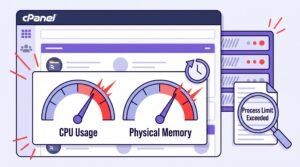
Log into cPanel and look for a section called Resource Usage, Resource Monitor, or something similar.
Your hosting provider may show CPU usage, memory usage, entry processes, PHP workers, and other account limits.
Look for signs that your account has repeatedly reached its limits.
For example, if CPU or memory usage is consistently hitting 100%, your WordPress site may be asking the server to do more work than your hosting account can handle.
This is especially common after:
* A sudden traffic increase
* Installing a resource-heavy plugin
* Running large backups
* Importing large databases
* Running scheduled WordPress tasks
* Experiencing bot or crawler traffic
If resources are being exhausted regularly, simply removing the 503 message without addressing the underlying limitation will not solve the problem permanently.
3. Disable WordPress Plugins
Plugins are one of the first things to investigate.
A poorly coded, incompatible, or resource-intensive plugin can cause PHP processes to fail or consume excessive resources.
If you can access WordPress, go to Plugins → Installed Plugins and deactivate your plugins.
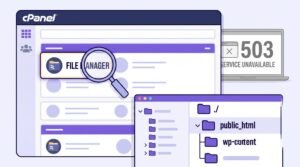
If the dashboard is inaccessible, you can use cPanel’s File Manager.
Navigate to:
`public_html/wp-content/`
Find the folder called:
`plugins`
Rename it to something such as:
`plugins-disabled`
This prevents WordPress from loading the installed plugins.
Now test your website.
If the 503 error disappears, a plugin is probably responsible. Rename the folder back to `plugins`, then reactivate plugins individually until you identify the problematic one.
Once you find it, update it, replace it, or contact the plugin developer.
4. Switch to a Default WordPress Theme
Your theme can also cause server errors.
If disabling plugins does not fix the problem, temporarily test the active theme.
Using cPanel File Manager, navigate to:
`wp-content/themes/`
Find the folder for your active theme and rename it.
WordPress may then fall back to an available default theme.
If the site starts working again, investigate the theme for compatibility problems, outdated code, or excessive resource requirements.
Always keep a current backup before making changes to WordPress files.
5. Increase PHP Memory Limits
Insufficient PHP memory can contribute to WordPress failures.
In cPanel, look for MultiPHP INI Editor, PHP Options, or a similar PHP configuration tool.
Depending on your host, you may be able to increase values such as:
* `memory_limit`
* `max_execution_time`
* `max_input_time`
* `max_input_vars`
* `upload_max_filesize`
For example, WordPress sites sometimes benefit from increasing the PHP memory limit from a low default value to something more appropriate for the site’s workload.
Do not simply set every value extremely high.
Your hosting provider may impose maximum limits, and unnecessarily large PHP limits can hide an underlying problem rather than solve it.
6. Check the PHP Version
An outdated or incompatible PHP version can create WordPress problems.
In cPanel, open MultiPHP Manager or your hosting provider’s PHP version management tool.
Check which PHP version your domain is using.
Make sure your WordPress installation, theme, and plugins support the selected version.
If the 503 error appeared immediately after changing PHP versions, temporarily switching back to the previous compatible version can help confirm whether PHP compatibility is responsible.
However, avoid running an obsolete PHP version permanently. Once the problem is identified, update incompatible plugins or themes and move toward a supported PHP release.
7. Examine Your Error Logs
If the problem remains, look at your server error logs.
cPanel commonly provides an Errors or Error Log section.
You may see messages referencing PHP scripts, memory exhaustion, execution timeouts, permissions, or specific plugins.
Pay attention to the file paths mentioned in the errors.
For example, if repeated messages point toward a particular plugin directory, that plugin deserves investigation.
Error logs are often much more useful than guessing because they provide clues about what happened immediately before the server returned the 503 response.
8. Clear Caches and Check Cron Jobs
Caching normally helps WordPress performance, but corrupted or badly configured cache systems can occasionally contribute to problems.
Clear your WordPress cache and any server-level cache available through your hosting account.
You should also check scheduled tasks.
WordPress uses WP-Cron to perform background activities such as publishing scheduled posts, checking updates, and processing certain plugin tasks.
A poorly configured plugin can create excessive scheduled jobs and consume server resources.
If your hosting environment supports real cron jobs, your host or developer may be able to configure WordPress cron processing more efficiently.
9. Contact Your Hosting Provider
If you have disabled plugins, tested the theme, checked PHP settings, reviewed resource usage, and examined logs but the 503 continues, contact your host.
Give them useful information rather than simply saying, “My website is down.”
Tell them:
* The exact domain affected
* When the problem started
* Whether `/wp-admin/` works
* Whether plugins were recently installed or updated
* Your current PHP version
* Whether resource limits are being reached
* Any relevant error-log messages
Your hosting provider can check server-side information that may not be visible inside cPanel.
Best Practices and Pro Tips
Preventing recurring 503 errors is better than repeatedly repairing them.
Keep WordPress, plugins, themes, and PHP properly updated. Remove plugins you no longer use rather than leaving dozens of inactive extensions installed.
Choose lightweight, well-maintained plugins and avoid installing several plugins that perform the same task.
Monitor hosting resources regularly, especially after launching a marketing campaign or publishing content that may generate significant traffic.
You should also maintain reliable backups. Before changing PHP settings, editing files, or modifying WordPress configuration, create a backup whenever possible.
Finally, use caching and image optimization sensibly. A faster site places less pressure on the server and can improve the experience for visitors at the same time.
Common Mistakes to Avoid
1. Increasing Every PHP Limit
Making every PHP value enormous is not a proper solution. Find out which resource is actually being exhausted first.
2. Blaming WordPress Immediately
A 503 can originate from hosting resources, PHP processes, plugins, themes, traffic, or server configuration. Don’t assume WordPress itself is defective.
3. Disabling Everything Permanently
Temporarily disabling plugins is useful for diagnosis. Leaving important security, caching, backup, or functionality plugins disabled is not a long-term strategy.
4. Ignoring Resource Usage
If your hosting account repeatedly reaches CPU, memory, or process limits, the underlying hosting environment may need attention. Moving to a more suitable plan may ultimately be the correct solution.
Conclusion: Fix WordPress 503 Service Unavailable Error cPanel Problems
A 503 Service Unavailable error can look serious, but it is often possible to identify the cause using cPanel and a systematic troubleshooting process.
Start by checking whether the problem is temporary. Then inspect resource usage, disable plugins, test the theme, review PHP settings, check your PHP version, and examine the error logs.
Most importantly, don’t treat the error message as the diagnosis. A 503 is a symptom. Your goal is to discover what is preventing the server from processing the WordPress request.
At WP Fix It Co, our goal is to make WordPress troubleshooting easier to understand and act on. If you’re dealing with hosting problems, WordPress errors, performance issues, or configuration headaches, keep exploring WP Fix It Co for practical solutions that help you get your website working properly again.