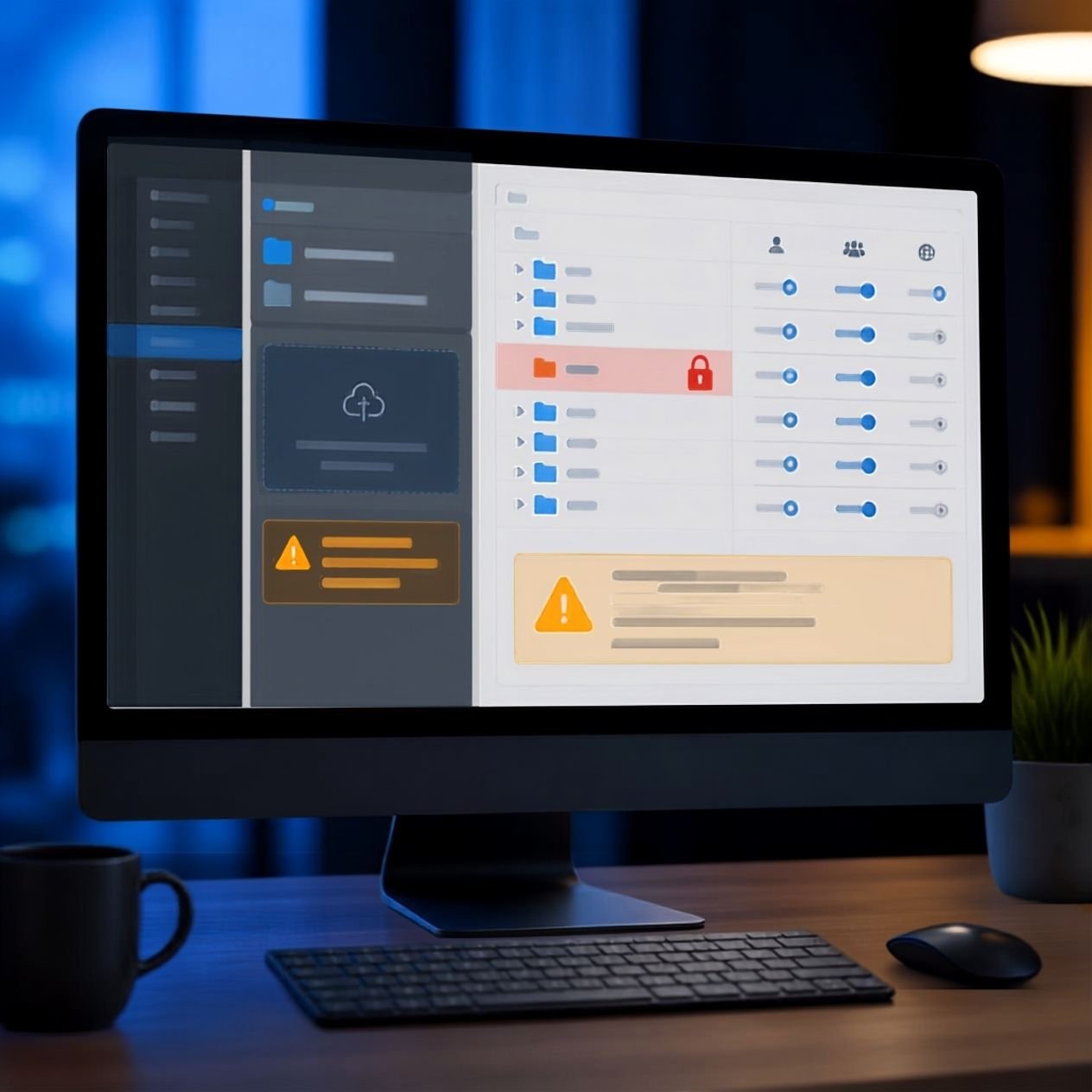
How to Fix Upload Folder Permissions Error WordPress cPanel
If WordPress suddenly refuses to upload an image, PDF, plugin, or other media file, the problem can be surprisingly frustrating. One of the most common causes is incorrect **upload folder permissions**.
You may see messages such as Unable to create directory, The uploaded file could not be moved, or Missing a temporary folder. In many cases, WordPress itself is working perfectly. The problem is that your web server does not have the correct permission to write files to the WordPress uploads directory.
Fortunately, if your website uses cPanel, you can usually diagnose and correct the problem without reinstalling WordPress or changing complicated code.
This guide explains how to fix upload folder permissions error WordPress cPanel, including the correct permissions to use, how to find the uploads folder, and what to check if changing permissions does not solve the problem.

The Core Basics
Before changing anything, it helps to understand what WordPress means by an upload folder permission error.
WordPress normally stores images, videos, documents, and other media inside:
`/wp-content/uploads/`
Within this directory, WordPress commonly creates folders organised by year and month. For example:
`/wp-content/uploads/2026/09/`
For WordPress to upload media successfully, the web server needs permission to read, write, and sometimes execute directories as required by the hosting environment.
File and folder permissions are usually represented by three-digit numbers. You will commonly encounter:
* 644 — commonly used for WordPress files.
* 755 — commonly used for WordPress directories.
* 775 — sometimes required in particular hosting/server configurations.
* 777 — grants very broad permissions and should generally be avoided.
The important point is that permissions are not simply about making a folder open. They determine which users and processes can read, modify, or execute files.
If your `/wp-content/uploads/` directory is owned by the wrong server user, or its permissions are too restrictive, WordPress may be unable to save uploaded files.
💡 WP Fix It Co Recommendation: If you’re learning how to fix upload folder permissions error wordpress cpanel, a fast, secure host with a properly configured server environment can prevent permission-related problems or help you implement the solution smoothly. Get Hostinger WordPress Hosting here.
Step-by-Step Guide to Fix WordPress Upload Permissions in cPanel
1. Confirm the Error Is Actually a Permissions Problem
Start by confirming what WordPress is reporting.
Go to your WordPress dashboard and try uploading an image through **Media → Add New**.
If the upload fails, look carefully at the error message. Common examples include:
* Unable to create directory.
* The uploaded file could not be moved.
* Failed to write file to disk.
* Missing a temporary folder.
The exact wording matters because not every upload problem is caused by permissions.
If you see an error mentioning a directory that cannot be created or written to, permissions are a strong possibility.
2. Log Into cPanel
Log into your hosting account and open cPanel.
Depending on your hosting provider, cPanel may be available through your hosting dashboard rather than directly through a separate login page.
Look for File Manager under the Files section.
File Manager allows you to view and modify the files and folders that make up your WordPress installation.
3. Locate the WordPress Uploads Folder
Open File Manager and navigate to your WordPress installation.
For a typical website, this will be something similar to:
`public_html/wp-content/uploads`
If WordPress is installed in a subdirectory, your path may be different.
Once you locate the `uploads` folder, right-click it and choose Change Permissions or a similarly named option.
4. Check the Uploads Folder Permissions
For most standard WordPress installations, the uploads directory should normally use 755 permissions.
You may see a permissions window containing checkboxes for:
* Read
* Write
* Execute
For a 755 directory, the permissions correspond broadly to:
* Owner: Read, Write, Execute
* Group: Read, Execute
* Public: Read, Execute
If the folder is set to something like 700, WordPress may not have the access it needs depending on your hosting configuration.
Change the directory to 755, save the change, and then return to WordPress.
Try uploading an image again.
5. Check the Year and Month Folders
Sometimes the main `uploads` folder has the correct permissions while one of its child folders does not.
Inside `/wp-content/uploads/`, you may see folders such as:
`2025`
`2026`
Open the current year folder and inspect the relevant month directory.
For example:
`wp-content/uploads/2026/09/`
Check that these directories have appropriate permissions, commonly 755.
If a particular month folder has unusually restrictive permissions, correcting it may immediately resolve the problem.
6. Check File Permissions
The upload folder itself is not the only thing that matters.
WordPress files commonly use 644 permissions, while directories commonly use 755.
Avoid changing every WordPress file to 777 simply because an upload is failing.
Although broader permissions can sometimes make an error disappear temporarily, they can create unnecessary security risks by allowing processes or users more access than they actually require.
Use the least permissive setting that works correctly with your hosting environment.
7. Check Folder Ownership
If changing the permissions to 755 does not solve the problem, ownership may be the real issue.
This is particularly important if the website was:
* Migrated from another hosting provider.
* Restored from a backup.
* Manually copied between servers.
* Recently moved to a new account.
* Modified using a different server user.
A folder can have apparently correct permissions while still being owned by the wrong user.
For example, WordPress may be attempting to write files as one server user while the `uploads` directory belongs to another.
cPanel’s File Manager does not always provide everything required to correct ownership. In that situation, your hosting provider may need to fix the ownership from the server side.
8. Check the WordPress Media Settings
There is another setting worth checking if permissions appear correct.
Go to:
WordPress Dashboard → Settings → Media
Look for the option relating to Uploading Files.
In older WordPress installations, there may be a setting specifying the location where uploaded files are stored.
If a custom upload directory has been entered incorrectly, WordPress may be attempting to save files somewhere that does not exist or cannot be accessed.
For a normal installation, the default WordPress upload structure is usually preferable.
9. Check for a Full Disk or Hosting Quota
Sometimes the error looks like a permissions problem but has nothing to do with permissions.
If your hosting account has run out of disk space, WordPress may be unable to create or move uploaded files.
Check your cPanel account for:
* Disk usage
* File usage
* Account quota
* Database usage
* Email storage
Delete unnecessary backups, cache files, old staging sites, unused media, and other files if appropriate.
Do not randomly delete WordPress files. If you’re unsure whether something is safe to remove, check with your hosting provider first.
10. Check the Temporary Folder
WordPress uploads can also depend on PHP’s temporary directory.
If you see an error such as:
Missing a temporary folder
changing the `/uploads/` permissions may not fix it.
This problem can involve PHP configuration or the server’s temporary directory.
In that situation, check your hosting control panel and PHP configuration, or contact your host and ask them to verify that PHP has access to a valid temporary upload directory.
11. Test the Upload Again
Once you have corrected the suspected issue, return to:
WordPress Dashboard → Media → Add New
Upload a small JPG or PNG file.
If it works, test another file type such as a PDF if your website normally uses documents.
Also check that WordPress generates the expected image sizes and that the uploaded file appears correctly in the Media Library.
Best Practices and Pro Tips
Correct permissions are only one part of keeping WordPress uploads reliable.
Use these practices to reduce future problems:
* Keep directory permissions generally at 755 unless your hosting environment requires something different.
* Keep normal WordPress files generally at 644.
* Avoid using 777 as a permanent solution.
* Keep WordPress, themes, and plugins updated.
* Remove unused plugins and themes.
* Maintain reliable website backups.
* Monitor available hosting storage.
* Use reputable WordPress hosting with sensible server configuration.
* Avoid manually changing ownership unless you understand the server environment.
* Test uploads after major migrations or hosting changes.
If the problem started immediately after a website migration, backup restoration, or server change, don’t assume WordPress is broken. Ownership and server configuration should be high on your troubleshooting list.
Common Mistakes to Avoid
Using 777 as a Quick Fix
Changing everything to 777 may appear to solve the problem, but it can create unnecessary security exposure. Always aim for the most restrictive permissions that still allow WordPress to function.
Changing the Wrong Folder
Make sure you’re working with the actual WordPress installation and specifically the `/wp-content/uploads/` directory.
Ignoring Ownership
Correct permissions cannot always compensate for incorrect file ownership. If 755 does not work, ownership may need to be investigated by your hosting provider.
Forgetting About Disk Space
A completely full hosting account can prevent uploads even when permissions are perfect. Always check your available storage before making major changes.
Conclusion: Fix Your WordPress Upload Permissions the Right Way
Learning how to fix upload folder permissions error WordPress cPanel doesn’t have to be intimidating. In many cases, checking the `/wp-content/uploads/` directory and correcting its permissions to the appropriate setting, commonly 755, is enough to restore uploads.
However, permissions are only one possible cause. If the problem remains, investigate folder ownership, disk space, PHP’s temporary directory, and WordPress’s media configuration.
Most importantly, don’t solve the problem by blindly giving every WordPress file and folder maximum permissions.
At WP Fix It Co, our goal is to make WordPress troubleshooting easier to understand and safer to implement. When a WordPress error appears, work through the cause methodically rather than applying a risky quick fix.