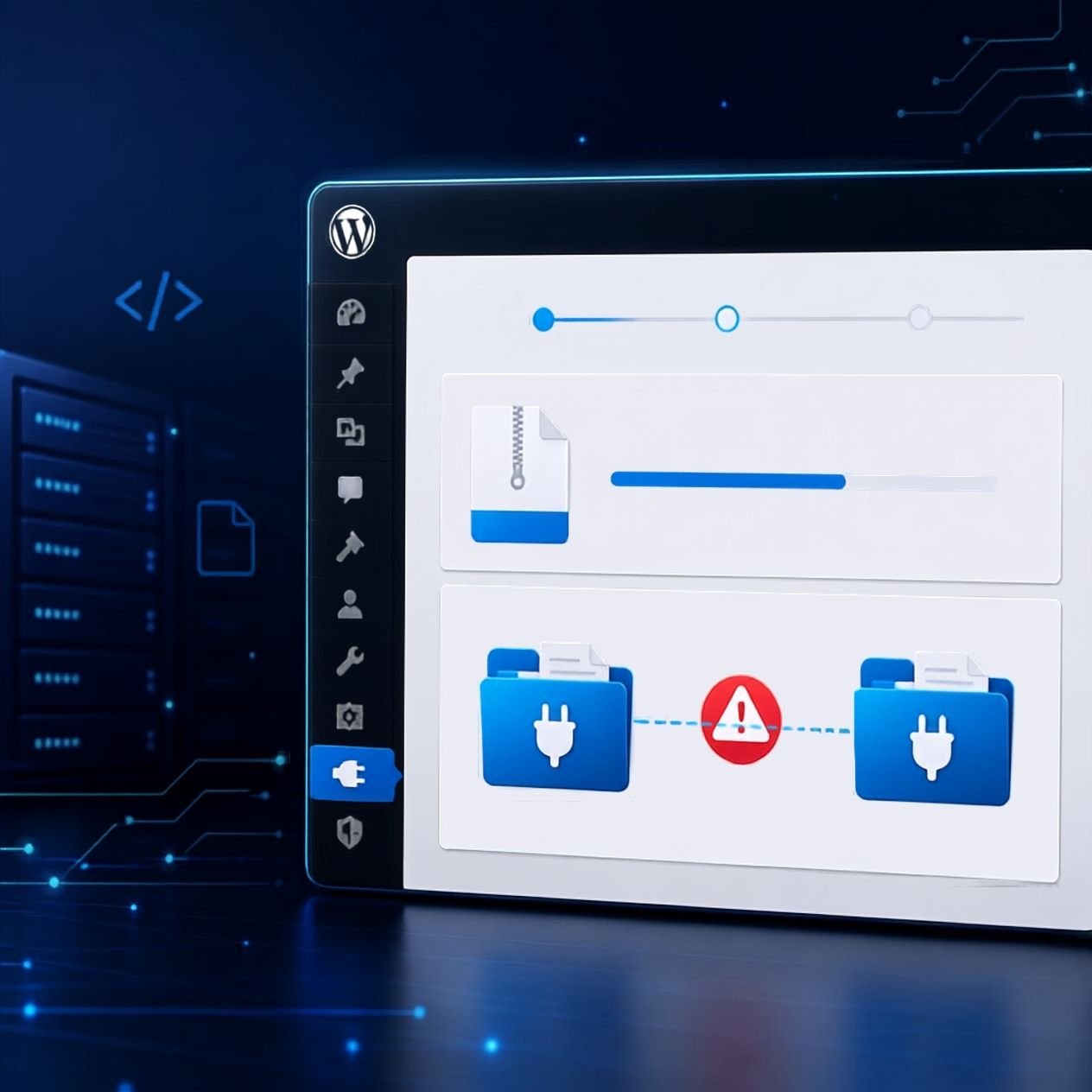
How to Fix Destination Folder Already Exists Error in WordPress Plugin
Installing a new WordPress plugin should be simple: upload it, activate it, and start using it. Yet sometimes WordPress stops the installation with a frustrating message: Destination folder already exists.
This error usually appears when WordPress tries to install a plugin whose folder is already present in the `wp-content/plugins` directory. The existing folder may belong to an earlier installation, a failed update, an incomplete upload, or a plugin that was manually removed incorrectly.
The good news is that this is usually a straightforward problem to fix. You do not necessarily need to reinstall WordPress or contact your hosting provider.
In this guide, we’ll explain how to fix destination folder already exists error WordPress plugin, why it happens, and the safest ways to resolve it without accidentally deleting important plugin files.
The Core Basics
Before fixing the problem, it helps to understand what WordPress is actually telling you.
A WordPress plugin is stored inside the site’s `wp-content/plugins` directory. For example, a plugin might use a folder such as:
“`text
/wp-content/plugins/contact-form-7/
“`
When you install that plugin, WordPress checks whether the destination folder already exists.
If it does, WordPress may refuse to copy the new plugin files because it does not want to overwrite an existing directory unexpectedly. This produces the Destination folder already exists error.
Several situations can cause this:
* A previous plugin installation was interrupted.
* The plugin was deleted incompletely.
* An old plugin folder remains on the server.
* A manual FTP upload created the directory.
* A failed update left behind partial files.
* A migration or backup restoration duplicated plugin files.
* File ownership or permissions prevent WordPress from handling the existing directory correctly.
The important point is that the error doesn’t necessarily mean the plugin is currently active. An inactive or incomplete plugin folder can trigger the same message.
💡 WP Fix It Co Recommendation: If you’re learning how to fix destination folder already exists error wordpress plugin, having a fast, secure WordPress host can make plugin management, file access, backups, and troubleshooting much easier. A reliable hosting environment can also help prevent installation problems or allow you to implement this solution smoothly. Get Hostinger WordPress Hosting here.
Step-by-Step Guide: How to Fix the Error
There are several ways to resolve this WordPress problem. Start with the simplest method and only move to more advanced solutions if necessary.
1. Check Whether the Plugin Is Already Installed
Before deleting anything, check your WordPress dashboard.
Go to:
WordPress Dashboard → Plugins → Installed Plugins
Look for the plugin you’re attempting to install.
If it’s already listed, you may simply need to activate or update it rather than installing another copy.
If the plugin appears in the dashboard and works correctly, there may be no problem to fix at all.
2. Deactivate the Existing Plugin
If the plugin is already installed but you’re trying to replace it with a fresh copy, deactivate it first.
Go to Plugins → Installed Plugins, find the plugin and select Deactivate.
You can then delete the plugin through the WordPress dashboard before installing a fresh copy.
This is usually the safest option because WordPress handles the deletion process for you.
Important: Make sure you have a recent backup before deleting a plugin, particularly if it stores important configuration or data.
3. Delete the Existing Plugin Folder Through WordPress
If the plugin isn’t showing properly in the dashboard but its folder remains on your server, you may need to remove it manually.
You can access your files using:
* Your hosting control panel’s File Manager
* FTP
* SFTP
* SSH, if available
Navigate to:
“`text
public_html/wp-content/plugins/
“`
You should see the plugin’s directory there.
For example:
“`text
wp-content/plugins/example-plugin/
“`
Delete only the folder belonging to the affected plugin.
Then return to WordPress and attempt the installation again.
Be careful here. Never delete the entire `plugins` directory.
4. Use Your Hosting File Manager
For beginners, a hosting File Manager is often easier than FTP.
Open your hosting control panel and locate File Manager.
Then:
1. Open your WordPress installation directory.
2. Open `wp-content`.
3. Open `plugins`.
4. Locate the folder producing the error.
5. Confirm its name matches the plugin you’re installing.
6. Create a backup if necessary.
7. Delete the old plugin folder.
8. Return to WordPress.
9. Install the plugin again.
This method is particularly useful when WordPress cannot remove the plugin itself.
5. Check for an Incomplete Installation
Sometimes the folder exists because a previous installation failed halfway through.
Open the plugin directory and inspect its contents.
A normal plugin should contain its expected files and subdirectories. An incomplete installation may contain only a few files or unusual temporary files.
If you’re certain the folder belongs to the failed installation, removing it and reinstalling the plugin can resolve the problem.
However, don’t automatically delete a folder simply because it looks unusual. Confirm the plugin name and, if possible, check your backup first.
6. Try Reinstalling the Plugin
After removing the conflicting folder, return to:
Plugins → Add New
Search for the plugin or upload the ZIP file again.
WordPress should now be able to create the required destination directory.
If the installation succeeds, activate the plugin and check your website carefully.
7. Check File Permissions
If the error continues even after removing the old directory, permissions may be involved.
WordPress needs appropriate permissions to create and modify files and directories.
Typical WordPress permissions are commonly:
* Directories: `755`
* Files: `644`
Your exact setup may differ depending on your hosting environment.
If permissions appear incorrect, ask your hosting provider to check ownership and permissions rather than changing random settings yourself.
Incorrect permissions can create additional problems, including plugin update failures and security weaknesses.
8. Clear a Failed Update or Migration
If this error appeared after moving your website, restoring a backup, or updating WordPress, the remaining directory may be a leftover from that process.
Check whether the plugin folder contains files from the old installation.
If you’re working on a production website, take a complete backup before making changes.
A staging website is even better for testing the solution.
9. Use FTP or SFTP When Dashboard Access Fails
If WordPress itself is inaccessible, you can still manage plugin folders through FTP or SFTP.
Connect to your website and navigate to:
“`text
/wp-content/plugins/
“`
Locate the problematic folder and rename it rather than immediately deleting it.
For example:
“`text
example-plugin
“`
could temporarily become:
“`text
example-plugin-old
“`
Then test the website.
Renaming is useful because it gives you an easy rollback option. If everything works correctly, you can later remove the old directory.
10. Check Whether Another Plugin Is Causing the Problem
Occasionally, a plugin conflict or unusual installation process can make troubleshooting more complicated.
If the error occurs repeatedly with different plugins, don’t assume every plugin is defective.
Look for broader issues such as:
* Incorrect file permissions
* Insufficient disk space
* Hosting restrictions
* Corrupted WordPress files
* Failed migrations
* Security software blocking file operations
If several plugins produce similar errors, your hosting environment or WordPress installation deserves closer investigation.
Best Practices and Pro Tips
The easiest way to deal with plugin installation problems is to prevent them from becoming serious problems in the first place.
Always maintain current backups. Before deleting plugin files or making server-level changes, have a restorable backup available.
Use reputable plugins. Download plugins from trusted sources and keep them updated.
Avoid unnecessary manual file deletion. If a plugin can be removed safely through WordPress, that’s generally preferable.
Use staging for major changes. Test plugin updates and replacements on a staging copy before changing a busy production website.
Monitor hosting storage. Running out of disk space can cause incomplete installations and other unexpected errors.
Keep WordPress updated. An outdated WordPress installation can create compatibility and security problems.
If the same error repeatedly returns, don’t simply keep deleting the folder. Find out why WordPress cannot complete the installation properly.
Common Mistakes to Avoid
Beginners often make the problem worse by rushing the fix.
Deleting the Wrong Folder
Always verify the plugin directory name before deleting it. Never delete the entire `wp-content` or `plugins` directory.
Skipping a Backup
Manual server changes can go wrong. A recent backup gives you a safety net.
Changing Permissions Randomly
Incorrect permissions can create security and functionality problems. If you’re unsure, ask your hosting provider to inspect them.
Reinstalling Without Removing the Conflict
Uploading the same plugin ZIP repeatedly won’t solve the problem if the conflicting destination directory remains on the server.
Conclusion
The Destination folder already exists message is usually caused by a plugin directory that WordPress finds where it expects to create a new one. In many cases, checking the installed plugins list, removing or renaming the leftover folder, and reinstalling the plugin solves the issue.
If the problem keeps returning, investigate permissions, storage, migrations, and hosting configuration rather than repeatedly deleting files.
At WP Fix It Co, our goal is to make WordPress troubleshooting easier to understand and safer to perform. For more practical guides covering WordPress errors, plugin problems, performance, security, and website maintenance, keep exploring WP Fix It Co.