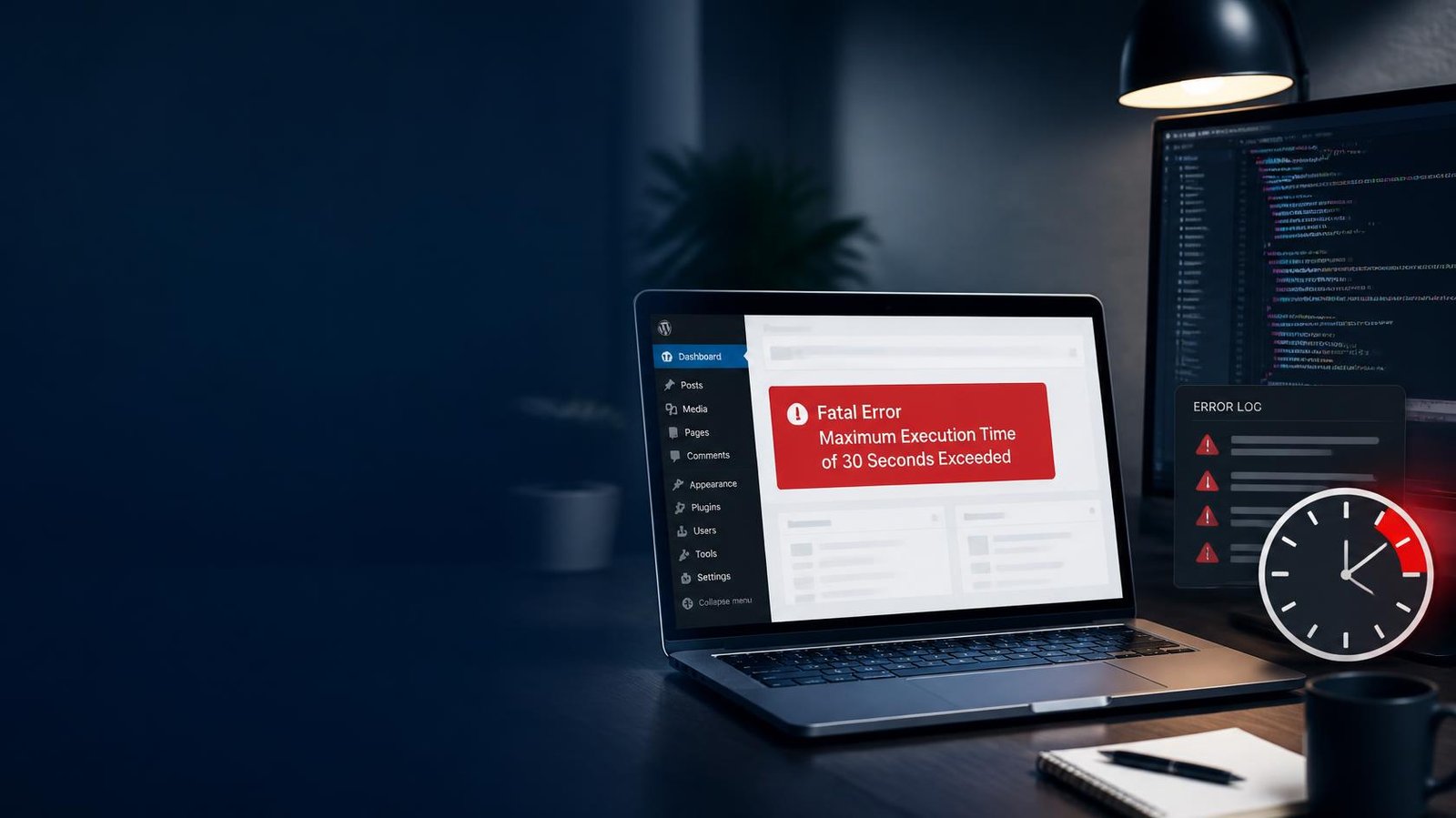
Fatal Error Maximum Execution Time of 30 Seconds Exceeded In WordPress
How to Fix It
If you have ever opened your WordPress website and been greeted by the message “Fatal error: Maximum execution time of 30 seconds exceeded”, it can be alarming. The good news is that this error is usually fixable without rebuilding your website.
The message means WordPress, PHP, or your web server stopped a process because it took longer than the permitted amount of time to complete. This limit exists for a good reason: it prevents a broken plugin, script, theme function, or server process from consuming resources indefinitely.
The problem often appears during plugin updates, theme installations, WordPress updates, imports, backups, image processing, or other resource-heavy tasks.
In this guide, we will explain exactly what the error means and show several practical ways to fix it, starting with the easiest solutions for beginners.

The Core Basics
To understand the fatal error maximum execution time of 30 seconds exceeded WordPress, you first need to understand PHP execution time.
WordPress is built primarily with PHP. When you load a page or perform an administrative task, WordPress sends instructions to the server, and PHP processes those instructions.
Your hosting environment normally places a maximum time limit on how long a PHP script can run. A common setting is 30 seconds.
If the process has not finished when that limit is reached, PHP stops it and WordPress may display an error similar to:
Fatal error: Maximum execution time of 30 seconds exceeded
This does not necessarily mean your website is permanently broken.
The underlying cause could be:
- A poorly coded plugin
- A demanding theme function
- A plugin conflict
- A large database operation
- An oversized image or media process
- A WordPress update
- A backup or migration
- Insufficient hosting resources
- A PHP configuration limit
Increasing the execution time can solve the immediate problem, but you should also investigate why the process required so much time.
💡 WP Fix It Co Recommendation: If you are dealing with the fatal error maximum execution time of 30 seconds exceeded wordpress, a fast, secure WordPress host can reduce resource-related problems and make it much easier to implement solutions when additional PHP resources or configuration changes are needed. Get Hostinger WordPress Hosting here.
How to Fix the Maximum Execution Time Error in WordPress
There are several ways to approach this problem. Start with the simplest method and only move to more technical solutions if necessary.
1. Identify What Triggered the Error
Think about what you were doing immediately before the error appeared.
Did you:
- Install or update a plugin?
- Change your WordPress theme?
- Upload a large image?
- Import content?
- Run a backup?
- Update WordPress?
- Install a security plugin?
- Perform a database operation?
This information can provide an important clue.
If the error appeared immediately after installing a particular plugin, that plugin could be responsible.

2. Increase PHP Maximum Execution Time
One of the most common solutions is increasing the PHP execution limit.
For example, changing the limit from 30 seconds to 120 seconds gives a demanding operation considerably more time to finish.
Depending on your hosting provider, you may be able to change the PHP limits through your hosting control panel.
Look for settings such as:
- PHP Configuration
- PHP Options
- PHP Settings
- MultiPHP INI Editor
- Server Configuration
You may see a setting called:
max_execution_time
If your host allows it, increase the value to something such as:
120
Save the settings and test your WordPress operation again.
Do not automatically set the value extremely high. The goal is to provide enough time for legitimate processes while still protecting server resources.
3. Edit the WordPress .htaccess File
On some Apache-based hosting environments, you may be able to increase the execution time through .htaccess.
A possible configuration is:
php_value max_execution_time 120However, this method does not work on every hosting environment.
If your server does not permit PHP settings to be changed through .htaccess, you could potentially trigger a server error instead.
Always create a backup before editing important configuration files.
4. Modify wp-config.php Carefully
Another possible approach is adding configuration before the line that says:
/* That's all, stop editing! Happy publishing. */Depending on your hosting configuration, a PHP setting may be applied through server-level configuration rather than directly through WordPress.
It is important to understand that wp-config.php is not a universal solution for changing PHP’s max_execution_time. The hosting environment ultimately determines which PHP settings can be overridden.
If you are uncomfortable editing this file, contact your hosting provider rather than experimenting on a live website.
5. Check Your Plugins
Plugins are one of the first places to investigate when WordPress suddenly starts producing execution-time errors.
A plugin may perform a large number of database queries, process images, scan files, generate backups, or perform another resource-intensive task.
If you can still access WordPress:
- Go to Plugins.
- Review recently installed or updated plugins.
- Temporarily deactivate the suspected plugin.
- Repeat the operation that caused the error.
- Check whether the problem disappears.
If you cannot access the WordPress dashboard, plugins can often be disabled through your hosting file manager or FTP by renaming the relevant plugin folder.
Do this carefully, particularly on a live business website.
6. Test Your Theme
Your theme can also be responsible.
Switch temporarily to a standard WordPress theme if you have dashboard access.
If the error disappears, your theme or one of its custom functions may be involved.
This is particularly worth checking if you recently added custom PHP code, a theme framework, or a large collection of theme features.
7. Increase WordPress Memory
Execution time and PHP memory are different settings, but they can sometimes appear together when a website is struggling with demanding operations.
WordPress has a memory limit that determines how much memory PHP can use for certain tasks.
If your website is hitting memory limits, increasing available PHP memory may help with operations such as imports, plugin processes, and media handling.
Your hosting provider may control the maximum amount available, so increasing WordPress’s requested memory does not necessarily mean the server will provide it.
8. Contact Your Hosting Provider
If none of the above works, ask your host to investigate.
Give them the exact error message:
“Fatal error: Maximum execution time of 30 seconds exceeded.”
Also tell them what action caused it.
A good hosting support team can check server logs, PHP configuration, resource usage, and account restrictions that you cannot see from WordPress.
This can be much faster than repeatedly changing files and hoping something works.
Best Practices and Pro Tips
Don’t treat increasing the execution time as the entire solution.
If a simple WordPress task consistently requires more than 30 seconds, find out why. A plugin that takes several minutes to complete a normal operation may indicate a configuration problem, inefficient code, excessive database size, or inadequate hosting resources.
Keep WordPress, themes, and plugins updated. Updates often contain performance improvements and bug fixes.
Remove plugins you no longer use rather than simply leaving dozens of inactive plugins installed.
Choose quality hosting with sufficient server resources. A faster, properly configured hosting environment can make demanding WordPress tasks considerably smoother.
Regularly back up your website before changing PHP settings, themes, plugins, or configuration files.
Most importantly, change one thing at a time. If you change five settings simultaneously, you may fix the problem without discovering what caused it.
Common Mistakes to Avoid
Beginners often make the same mistakes when dealing with execution-time errors.
Mistake 1: Setting the limit extremely high.
A huge execution limit can allow inefficient processes to consume server resources for too long.
Mistake 2: Editing files without a backup.
A small syntax error in .htaccess or another configuration file can make your website inaccessible.
Mistake 3: Ignoring plugins.
Simply increasing PHP limits can hide the underlying problem if a particular plugin is poorly behaved.
Mistake 4: Making multiple changes at once.
Change one setting, test it, and then move to the next step. This makes troubleshooting much easier.
Conclusion: Fix the Error and Find the Cause
The fatal error maximum execution time of 30 seconds exceeded WordPress message looks serious, but it is often a straightforward configuration or performance problem.
Start by identifying what triggered the error. Then check your plugins and theme, review PHP execution settings, consider available server resources, and contact your hosting provider if necessary.
Increasing max_execution_time can give legitimate WordPress processes enough time to finish, but don’t use it to permanently cover up a poorly performing plugin or an underpowered hosting environment.
At WP Fix It Co, our goal is to make WordPress problems easier to understand and fix. If your WordPress website has another error, glitch, or configuration problem, keep exploring WP Fix It Co for practical solutions that beginners can actually follow.