WordPress Fix Folder Permissions Using File Manager cPanel
A Complete Beginner’s Guide
If WordPress suddenly refuses to upload images, install plugins, update themes, or write files,incorrect folder permissions may be the problem. It is one of those WordPress issues that can look complicated, but in many cases it can be corrected directly through cPanel without needing advanced server knowledge.
Learning how to wordpress fix folder permissions using file manager cpanel gives you a practical way to troubleshoot common permission denied, unable to create directory, and failed upload errors.
In this guide, we’ll explain what WordPress permissions mean, which permissions are normally appropriate, and how to safely check and correct them using cPanel File Manager. We’ll also cover mistakes that can create security problems and explain when you should stop and contact your hosting provider.

The Core Basics
Linux hosting uses file and folder permissions to determine who can read, write, or execute something on your website. WordPress needs the correct permissions to perform routine tasks such as uploading media, installing plugins, updating themes, and creating temporary files.
There are three main permission categories:
* Read — allows a file or folder to be viewed.
* Write — allows changes to be made.
* Execute — for folders, this allows the server to access and traverse the directory.
Permissions are commonly represented by numbers such as 644 and 755.
For many standard WordPress installations:
* WordPress files are commonly set to 644.
* WordPress directories are commonly set to 755.
* The wp-config.php file may use more restrictive permissions depending on the hosting environment.
* The wp-content directory and certain subdirectories need to be writable when WordPress must create or modify files.
The important point is that more permissive does not automatically mean better. Giving everything 777 permissions can create a serious security weakness.
Why Do WordPress Permissions Become Incorrect?
Permissions can change after:
* Moving a website between hosts.
* Restoring a backup.
* Uploading files manually.
* Changing ownership or server configurations.
* Using migration software.
* Installing certain scripts.
* Making changes through FTP or SSH.
Fortunately, cPanel File Manager provides a straightforward interface for checking and changing permissions.
💡 WP Fix It Co Recommendation: If you’re troubleshooting wordpress fix folder permissions using file manager cpanel, reliable hosting can make the process much smoother. A fast, secure host can help prevent permission-related issues or provide a more stable environment when implementing this solution. Get Hostinger WordPress Hosting here.
Step-by-Step: Fix WordPress Folder Permissions Using cPanel File Manager
Before changing anything, make a backup of your website if possible.
A permissions change is normally simple, but having a backup gives you a recovery option if another server configuration issue is involved.
Step 1: Log Into cPanel
Log into your web hosting account and open cPanel.
Depending on your hosting company, the cPanel interface may look slightly different. Look for the File Manager option, which is normally located under a section such as Files.
Click File Manager.
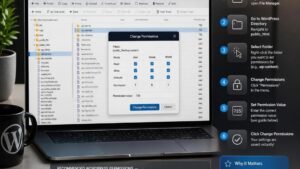
Step 2: Locate Your WordPress Installation
Once File Manager opens, locate the directory containing your WordPress installation.
For many websites, WordPress is installed inside:
public_html
However, your website may use another folder if it is an addon domain, subdomain, or custom installation.
A typical WordPress installation contains folders such as:
* wp-admin
* wp-content
* wp-includes
If you see these folders, you are probably looking at the WordPress root directory.
Step 3: Check the Folder Permissions
Right-click the folder you want to inspect and select Change Permissions.
Some versions of cPanel may provide a permissions option through the File Manager toolbar instead.
You will generally see permission checkboxes for:
* User
* Group
* World
These correspond to different users or categories of users accessing the server files.
For a normal WordPress directory, 755 is a common starting point.
That means:
* Owner: read, write, execute
* Group: read, execute
* Others: read, execute
This provides the access WordPress generally needs without making the directory unnecessarily open.
Step 4: Correct a WordPress Folder Set Incorrectly
If the folder is using an inappropriate permission value, change it to the required setting.
For many standard WordPress folders, this will be:
755
Save the change.
Do not immediately change every directory on your hosting account. Work specifically on the WordPress folders associated with the problem.
Step 5: Check WordPress Files
Folders and files do not necessarily use the same permissions.
A common WordPress file permission is:
644
This generally means:
* Owner: read and write
* Group: read
* Others: read
If individual WordPress files have unusual permissions, inspect them carefully.
Avoid blindly applying 755 to every file. Executable permission is generally not necessary for ordinary PHP, CSS, JavaScript, image, or configuration files.
Step 6: Pay Particular Attention to wp-content
The wp-content directory deserves attention because WordPress frequently works with files inside it.
Media uploads, plugins, themes, and other dynamically created content are commonly stored beneath wp-content.
Check:
public_html/wp-content
Then inspect relevant subdirectories such as:
uploads
If WordPress cannot upload images or create directories, incorrect permissions somewhere in this path could be responsible.
A typical uploads directory may use 755, although the correct configuration can vary according to your hosting environment and server setup.
Step 7: Test WordPress Again
After changing the permissions, return to WordPress.
Test the action that originally failed.
For example, if you received an error while uploading an image, try uploading another small image.
If a plugin installation failed, check whether the plugin can now be installed or updated.
If the original error disappears, the permissions were likely contributing to the problem.
Step 8: Do Not Use 777 as a Quick Fix
One of the most common recommendations beginners encounter is to change a problematic folder to 777.
This should generally be avoided.
A 777 permission grants read, write, and execute access to everyone covered by the permission model. On a web server, that can unnecessarily increase the potential attack surface.
If 755 does not solve the issue, don’t simply keep increasing permissions.
The underlying problem could instead be file ownership, PHP configuration, server security rules, or the hosting environment.
Step 9: Consider File Ownership
This is an important distinction.
Permissions determine what a user or process is allowed to do. Ownership determines which user owns the file or folder.
You can therefore have apparently sensible permissions while WordPress still cannot modify a directory because the web server process does not have the expected ownership.
If you have checked the permissions and WordPress still reports permission errors, contact your hosting provider.
Ask them to check the ownership of the WordPress files and directories and confirm that the PHP/web server user can access the required locations.
Best Practices and Pro Tips
When managing WordPress permissions through cPanel, the safest approach is to make the smallest change necessary.
Keep these practices in mind:
* Back up your website before making significant server changes.
* Use 755 for directories where appropriate.
* Use 644 for ordinary files where appropriate.
* Avoid 777 unless your hosting provider specifically instructs you to use it temporarily.
* Don’t change permissions across your entire hosting account unnecessarily.
* Check wp-content/uploads when media uploads fail.
* Investigate ownership if permissions appear correct but WordPress still cannot write files.
* Remove unused plugins and themes.
* Keep WordPress, themes, and plugins updated.
* Use reputable security software and reliable hosting.
Most importantly, remember that WordPress permissions are only one part of server security. Correct permissions should work together with secure hosting, strong passwords, updates, backups, and sensible administrator access.
Common Mistakes to Avoid
1. Setting Everything to 777
This is the biggest mistake. It may appear to solve a writing problem, but it can create unnecessary security exposure.
2. Changing Every File and Folder
Don’t modify your entire account simply because one WordPress directory has a problem. Identify the affected location first.
3. Confusing Files With Folders
Files and directories often require different permission settings. Don’t automatically apply the same value everywhere.
4. Ignoring Ownership
If permissions look correct but WordPress still cannot write to a directory, ownership may be the real issue. This often requires help from your hosting provider.
Conclusion: Fix WordPress Permissions Safely
Knowing how to wordpress fix folder permissions using file manager cpanel is a valuable troubleshooting skill for any WordPress site owner.
The process is usually straightforward: locate your WordPress installation, inspect the affected folder, use an appropriate permission such as 755 where applicable, check individual files separately, and then test the original WordPress function.
Don’t treat 777 as the automatic answer. If sensible permissions don’t resolve the problem, investigate ownership and server configuration instead.
At WP Fix It Co, the goal is to make WordPress troubleshooting easier to understand and safer to perform. Keep working methodically, make backups before major changes, and fix the underlying problem rather than simply masking the error.