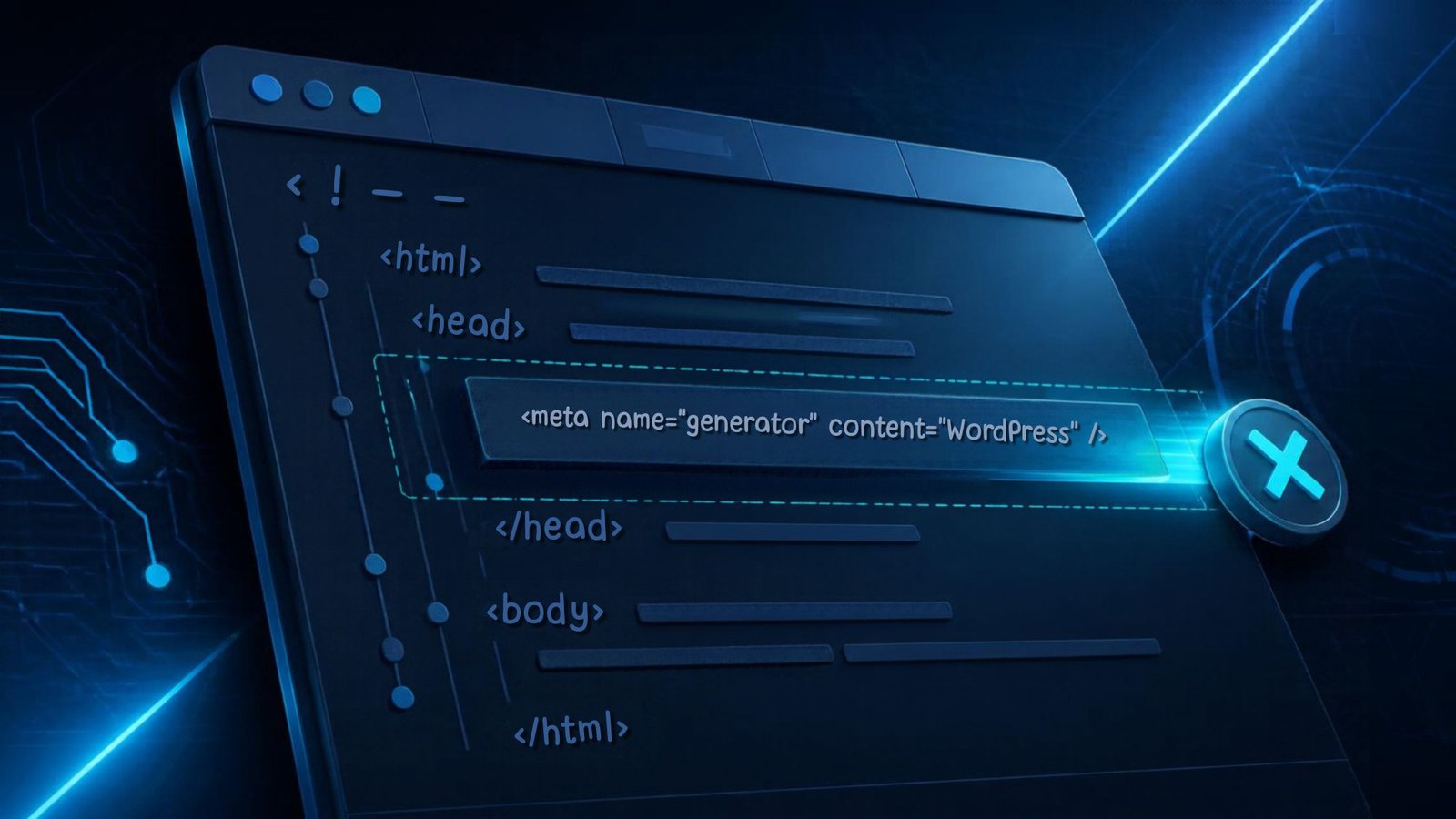
How to Remove Default Generator Meta Tag WordPress Header
Complete Guide
WordPress makes website management remarkably easy, but it also adds certain pieces of information to your site’s HTML automatically. One common example is the default generator meta tag, which can reveal that your website is powered by WordPress and may include the WordPress version.
For many website owners, this tag serves no useful purpose. If you are trying to keep your site’s source code cleaner, reduce unnecessary metadata, or avoid publicly exposing your WordPress version, you may want to remove it.
The good news is that how to remove default generator meta tag WordPress header is relatively straightforward. You do not need to modify WordPress core files, and you can accomplish it safely with a small PHP snippet.
This guide explains what the generator tag does, why you might remove it, and several practical ways to remove it without creating unnecessary problems.

The Core Basics
The WordPress generator meta tag is typically found inside the section of your website’s HTML source code.
A WordPress installation may output something similar to:
<meta name=”generator” content=”WordPress 6.x” />
The exact version shown depends on the WordPress version currently running on the website.
The purpose of this tag is mainly identification. It tells browsers, crawlers, and anyone viewing the page source that WordPress generated the page.
There is generally little SEO benefit to keeping this particular meta tag. Search engines do not need it to understand your content, and removing it does not remove WordPress functionality.
There are also several different ways WordPress can expose version information. Removing the generator tag therefore should not be treated as a complete security strategy.
For most sites, the cleanest approach is to remove the tag using WordPress’s built-in remove_action() functionality rather than editing WordPress core files.
The important point is simple: never edit WordPress core files just to remove this metadata. Core changes can be overwritten during updates and can create maintenance problems later.
💡 WP Fix It Co Recommendation: If you’re learning how to remove default generator meta tag wordpress header, using reliable WordPress hosting gives you a stronger foundation for making changes safely. A fast, secure host can help prevent hosting-related issues and makes it easier to implement and test this solution smoothly. Get Hostinger WordPress Hosting here.
How to Remove the Default Generator Meta Tag from WordPress
There are several approaches, but the simplest method for most WordPress websites is to use a PHP snippet.
Method 1: Use the remove_action() Function
WordPress generates the version meta tag through an action called `wp_head`.
The following code removes the generator output:
“`php
remove_action( ‘wp_head’, ‘wp_generator’ );
“`
However, it is better practice to attach the removal to an appropriate WordPress hook:
function wpfixitco_remove_generator_meta() {
remove_action( ‘wp_head’, ‘wp_generator’ );
}
add_action( ‘init’, ‘wpfixitco_remove_generator_meta’ );
“`
Once this code is active, WordPress should no longer output the standard generator meta tag in the page header.
Where Should You Add the Code?
You have several options.
Option 1: Your Child Theme’s functions.php
If your website uses a child theme, you can place the code inside:
/wp-content/themes/your-child-theme/functions.php
Do not add it to the parent theme if you can avoid it.
Parent theme files can be overwritten when the theme is updated. A child theme is much safer for custom PHP modifications.
Option 2: A Code Snippets Plugin
For beginners, a snippets plugin can be easier than editing theme files.
Create a new PHP snippet and add:
function wpfixitco_remove_generator_meta() {
remove_action( ‘wp_head’, ‘wp_generator’ );
}
add_action( ‘init’, ‘wpfixitco_remove_generator_meta’ );
Activate the snippet and check your website.
This approach also means your customization does not disappear when you change themes.
Option 3: Your Site’s Custom Functionality Plugin
If you maintain several WordPress customizations, you can put this type of code into a small custom functionality plugin.
This is particularly useful for developers because functionality remains separate from the visual theme.
That means switching themes will not automatically remove your custom WordPress modifications.
How to Check Whether It Worked
After adding the code, do not simply assume the change worked.
Open one of your website’s pages in a browser and view the page source.
You can usually do this by right-clicking the page and selecting View Page Source.
Then search for:
generator
Before the change, you may have seen:
<meta name=”generator” content=”WordPress 6.x” />
After the change, that particular WordPress generator tag should be gone.
You can also inspect the <head> section using your browser’s developer tools.
Clear Your Cache
Caching can make troubleshooting confusing.
If you have a caching plugin, server-side cache, CDN, or browser cache, clear the relevant caches after making the change.
Then reload the page and inspect the source again.
If the tag remains, temporarily test with caching disabled or purged.
What If the Generator Tag Still Appears?
This is where beginners sometimes get confused.
The standard WordPress generator tag is only one possible source of version information. A plugin, theme, security tool, or another customization may add its own metadata.
Search your page source for:
generator
Look carefully at what is generating the remaining tag.
You may discover that a plugin is adding it rather than WordPress itself.
Do not start deleting random code from your theme. First identify the source.
If necessary, temporarily deactivate non-essential plugins one at a time and check the page source after each change.
Does Removing the Generator Tag Improve Security?
It can reduce the amount of information publicly exposed, but it should not be considered a complete security measure.
Removing:
<meta name=”generator” content=”WordPress 6.x” />
does not make an outdated WordPress installation secure.
A determined attacker may still be able to identify WordPress through other characteristics.
Your priority should always be keeping WordPress, themes, and plugins updated.
You should also use strong authentication, reliable hosting, regular backups, and appropriate security controls.
Think of removing the generator tag as reducing unnecessary information exposure, rather than as a replacement for proper WordPress security.
Best Practices and Pro Tips
If you want a cleaner and more maintainable WordPress installation, keep these practices in mind.
* Never edit WordPress core files. Updates can overwrite your changes.
* Use a child theme when adding theme-specific PHP customizations.
* Consider a snippets plugin if you are uncomfortable editing PHP files.
* Back up your website before making PHP changes.
* Test changes on a staging site when possible.
* Clear website and CDN caches after making changes.
* Keep WordPress updated rather than relying on metadata removal for security.
* Check the page source to confirm the generator tag has actually disappeared.
One important tip is to avoid adding several plugins simply to remove tiny pieces of HTML. If you already have a trusted snippets solution, a lightweight PHP function is often all you need.
Common Mistakes to Avoid
1. Editing WordPress Core
Never modify files inside the core WordPress installation simply to remove the generator tag.
Your changes can disappear during an update.
2. Editing the Parent Theme
Putting custom PHP directly into a parent theme can cause your modification to disappear when that theme is updated.
A child theme or functionality plugin is safer.
3. Forgetting to Clear Caches
A cached version of your page may still contain the old HTML.
Clear your WordPress, server, CDN, and browser caches before assuming the code failed.
4. Thinking This Is Complete Security
Removing the generator tag does not hide every indication that your website uses WordPress.
Keep your entire installation updated and properly secured.
Conclusion: Keep Your WordPress Header Clean and Maintainable
Learning how to remove default generator meta tag WordPress header does not require complicated development work. A small remove_action() function can remove the standard WordPress generator metadata without modifying core files.
For most websites, the safest approach is to add the code through a child theme, code snippets solution, or custom functionality plugin. Always back up your site first and verify the result by checking the page source.
Most importantly, treat metadata removal as a small privacy and housekeeping improvement rather than a substitute for WordPress security.
For more practical WordPress troubleshooting guides, fixes, and beginner-friendly technical advice, keep exploring WP Fix It Co. We focus on helping website owners solve WordPress problems without unnecessary complexity.