
How to Fix WordPress Database Update Required Loop
A Complete Step-by-Step Guide
Seeing the Database Update Required message every time you log into WordPress can be frustrating. You click the update button, WordPress appears to complete the process, and then the same message comes back.
This is commonly known as the WordPress database update required loop.
The good news is that the problem is usually fixable without rebuilding your website. The loop can be caused by a database version mismatch, cached data, a plugin or theme conflict, incorrect database permissions, or an incomplete WordPress update.
In this guide, we’ll explain what causes the problem and show you how to fix the WordPress database update required loop safely. We’ll start with simple solutions before moving into more technical fixes.
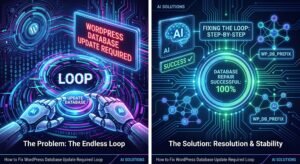
The Core Basics
WordPress consists of two major components: its files and its database.
The files contain WordPress’s core software, themes, plugins, images, and other website resources. The database stores important information such as posts, pages, settings, users, plugin data, and configuration information.
When you upgrade WordPress, a newer version may require changes to the database structure. WordPress detects this and displays the “Database Update Required” screen.
Normally, clicking Update WordPress Database completes the process once. WordPress updates the required database tables and sends you back to the dashboard.
The trouble starts when WordPress cannot properly record that the database update has completed. It may therefore keep asking you to perform the same update.
Several things can cause this:
* A failed or incomplete WordPress update
* Caching at the server or plugin level
* Database permission problems
* A plugin or theme conflict
* Incorrect database connection information
* Corrupted or incomplete WordPress files
* A database version that doesn’t match the installed WordPress files
Before making significant changes, always create a full backup of your website and database.
💡 WP Fix It Co Recommendation: If you’re dealing with the how to fix wordpress database update required loop problem, reliable hosting can make troubleshooting much easier. A fast, secure host helps prevent server-related issues and can help WordPress database updates complete smoothly. Get Hostinger WordPress Hosting here.
How to Fix the WordPress Database Update Required Loop
Work through the following solutions in order. Start with the easiest methods and move toward the more technical options only when necessary.
1. Clear Your Browser Cache
Start with the simplest possibility.
Your browser may be displaying an old version of the WordPress update page even though the database update has already completed.
Clear your browser cache and cookies, then close and reopen the browser.
You can also try accessing your WordPress dashboard in a private or incognito window.
If the update message disappears, the problem was probably cached browser information.
2. Clear WordPress and Server Caches
WordPress caching can cause the same problem.
If you use a caching plugin, clear its cache. Also clear any caching provided by your hosting company or CDN.
Check for:
* WordPress caching plugins
* Server-side caching
* CDN caching
* Object caching
* Browser caching
After clearing everything, log out of WordPress and log back in.
Try the database update again.
3. Run the Database Update Directly
Sometimes the normal WordPress dashboard process doesn’t successfully trigger the required database upgrade.
You can manually visit:
`yourdomain.com/wp-admin/upgrade.php`
Replace `yourdomain.com` with your actual domain.
WordPress may display the database upgrade screen. Follow the instructions and allow the process to finish completely.
Do not close the browser while the update is running.
Once finished, return to your dashboard and check whether the message has disappeared.
4. Disable Your Plugins
A plugin conflict can interfere with WordPress upgrades.
If you can access the dashboard, temporarily deactivate all plugins.
Then attempt the database update again.
If the problem disappears, reactivate your plugins one at a time. Test the website after each activation.
When the loop returns, you’ve likely identified the plugin causing the conflict.
If you cannot access the WordPress dashboard, you can disable plugins through your hosting file manager or FTP.
Locate:
`wp-content/plugins`
Rename the `plugins` folder temporarily, for example:
`plugins-disabled`
WordPress will no longer load the plugins.
If the database update works afterward, restore the folder name and troubleshoot the plugins individually.
5. Temporarily Switch to a Default Theme
Themes can occasionally interfere with WordPress updates.
If plugins aren’t responsible, temporarily switch to a standard WordPress theme.
If you cannot access the dashboard, you can rename your active theme’s folder through your hosting file manager or FTP.
WordPress may then fall back to an available default theme.
Run the database update again.
If it succeeds, investigate the theme for compatibility problems before restoring it.
6. Check Your wp-config.php Database Details
WordPress needs correct database connection information.
Open your `wp-config.php` file and check the following values:
* Database name
* Database username
* Database password
* Database host
* Table prefix
A typical configuration contains values such as:
`DB_NAME`
`DB_USER`
`DB_PASSWORD`
`DB_HOST`
Don’t change these values unless you’re certain what they should be.
If the credentials are incorrect, WordPress may be unable to communicate properly with the database.
7. Repair the WordPress Database
Database problems can also cause unexpected update behavior.
Before attempting repairs, make a complete database backup.
WordPress includes a database repair feature that can be enabled through `wp-config.php` by adding the appropriate repair setting. Once enabled, you can access the database repair page through WordPress.
After completing the repair, remove the repair setting from `wp-config.php`.
Leaving repair functionality enabled unnecessarily is not recommended because it can expose a maintenance interface.
8. Reinstall WordPress Core Files
If WordPress files were damaged or only partially updated, reinstalling the WordPress core can solve the mismatch.
If you can access the dashboard, use the built-in WordPress update or reinstall option where available.
If you cannot, upload a fresh copy of the same WordPress version using your hosting control panel or FTP.
**Do not overwrite your `wp-content` folder or your `wp-config.php` file unnecessarily.**
Your content and configuration are extremely important.
The objective is to replace damaged WordPress core files, not erase your website.
9. Check Database Permissions
Your database user needs appropriate permissions to make the required changes.
If the database user doesn’t have sufficient privileges, WordPress may be unable to complete the upgrade correctly.
Your hosting control panel may provide a database management tool where you can check the database user assigned to your WordPress installation.
If you’re unsure, contact your hosting provider and ask them to verify that your WordPress database user has the required permissions.
10. Check WordPress and PHP Compatibility
Older PHP versions can sometimes cause problems with newer WordPress installations, plugins, or themes.
Check your hosting control panel and WordPress Site Health screen for warnings.
Keeping WordPress, PHP, plugins, and themes reasonably current reduces compatibility problems.
Don’t upgrade everything simultaneously on a production website without a backup, however. Test major changes carefully.
Best Practices and Pro Tips
Prevention is much easier than repeatedly repairing a broken WordPress installation.
Create automatic backups and keep at least one backup stored separately from your hosting account.
Before major WordPress, theme, or plugin updates, create a fresh backup.
Keep your WordPress core, plugins, and themes updated, but remove software that you no longer use. Unused plugins can create security and compatibility risks.
It’s also worth using reputable hosting with reliable server performance, current PHP versions, and good backup options.
For larger websites, consider using a staging environment. You can test WordPress updates there before applying them to your live website.
Finally, don’t repeatedly click the database update button if it appears stuck. First determine whether the update is actually failing or whether caching is simply showing an outdated message.
Common Mistakes to Avoid
1. Making Changes Without a Backup
Never edit the database or important WordPress files without having a recent backup.
2. Deleting the Database
The database contains your website’s content and settings. Never delete it as a troubleshooting shortcut.
3. Changing wp-config.php Randomly
One incorrect character can prevent WordPress from connecting to the database.
4. Ignoring Plugins and Themes
A compatibility problem may be responsible for the loop. Test plugins and themes systematically rather than changing everything at once.
Conclusion: Get WordPress Out of the Update Loop
The WordPress database update required loop can look serious, but it is often caused by a relatively straightforward compatibility, caching, database, or file problem.
Start with the basics. Clear your caches, run `upgrade.php`, test your plugins, and check your WordPress files and database connection. Always work from a current backup before making deeper changes.
If you’re still stuck, don’t keep guessing. A hosting support team or experienced WordPress developer can help identify the exact cause.
At WP Fix It Co, our goal is to make WordPress troubleshooting easier to understand. When your website throws an error, follow a methodical process, protect your data first, and fix the underlying problem rather than simply hiding the warning.